




10 min read
Design a doc with stunning visuals
Make your doc interactive and impactful by leveraging the visual formatting options of Superhuman Docs.
Why do other tools make it so hard to visually format?
You’re writing a doc and want to add an image. You drop it in and suddenly your layout is chaos. Or maybe you want to add an emoji to a header, highlight a key takeaway, or add color to a table, but every step feels harder than it should. We’ve all been there. In most document tools, adding visuals takes so much time and effort that it feels easier to avoid them altogether. But then your doc is left without color, clarity, or life.Superhuman Docs helps you create docs that shine
Strong visuals are key to making your doc’s purpose crystal clear. Superhuman Docs' doc surface can handle all kinds of visuals, like emojis, images and videos, and callouts. These visuals not only make your doc pop, but help your key information stand out for maximum impact. Never worry about someone missing a main takeaway from your writeup again.
What you’ll get in this guide:
- A doc-building blueprint.
- Best practices for creating visually engaging docs.

Features you’ll use in this guide:
- Callouts
- Conditional formatting
- Buttons
- Reactions
1. Visuals to enhance readability
The following steps will teach you some best practices for how to easily set-up Superhuman Docs' visual elements. There’ll also be a few tips to create some ✨ in your doc as well! Let’s dive in! Open a doc you can edit freely or create a new one (type "superdoc.new" in your browser).Easily add images
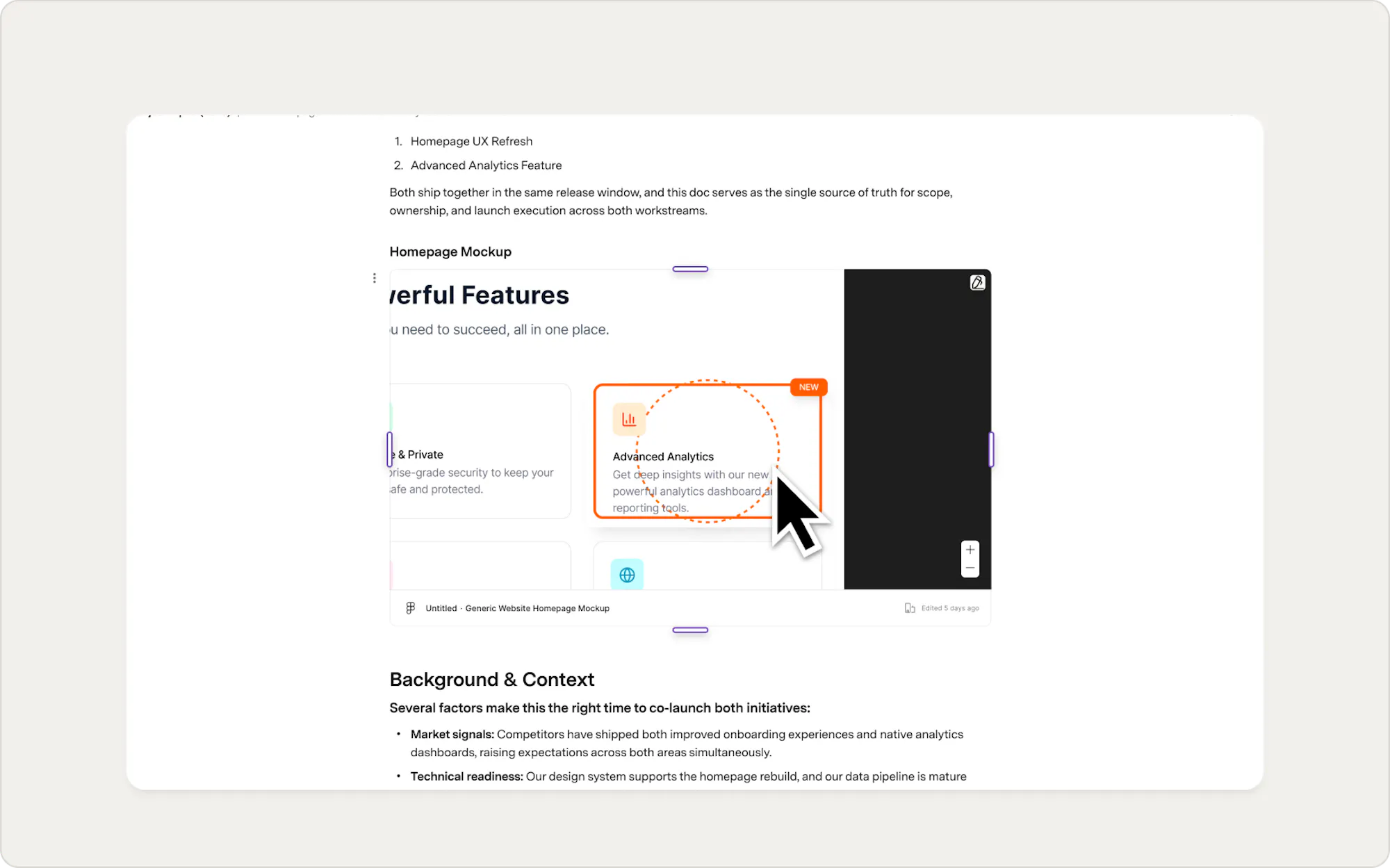
Never one to bury the lede, let's jump straight into showing you how to incorporate an image seamlessly with your text. Superhuman Docs makes it easy to add images to your doc.- Add an image by typing "/embed" and then pasting the image address into the dialog. Get the image address from Google images or a website by right-clicking the image and selecting copy image address.
- You can also add an image saved locally by typing "/image" and then selecting your file.
Highlight important information with callouts
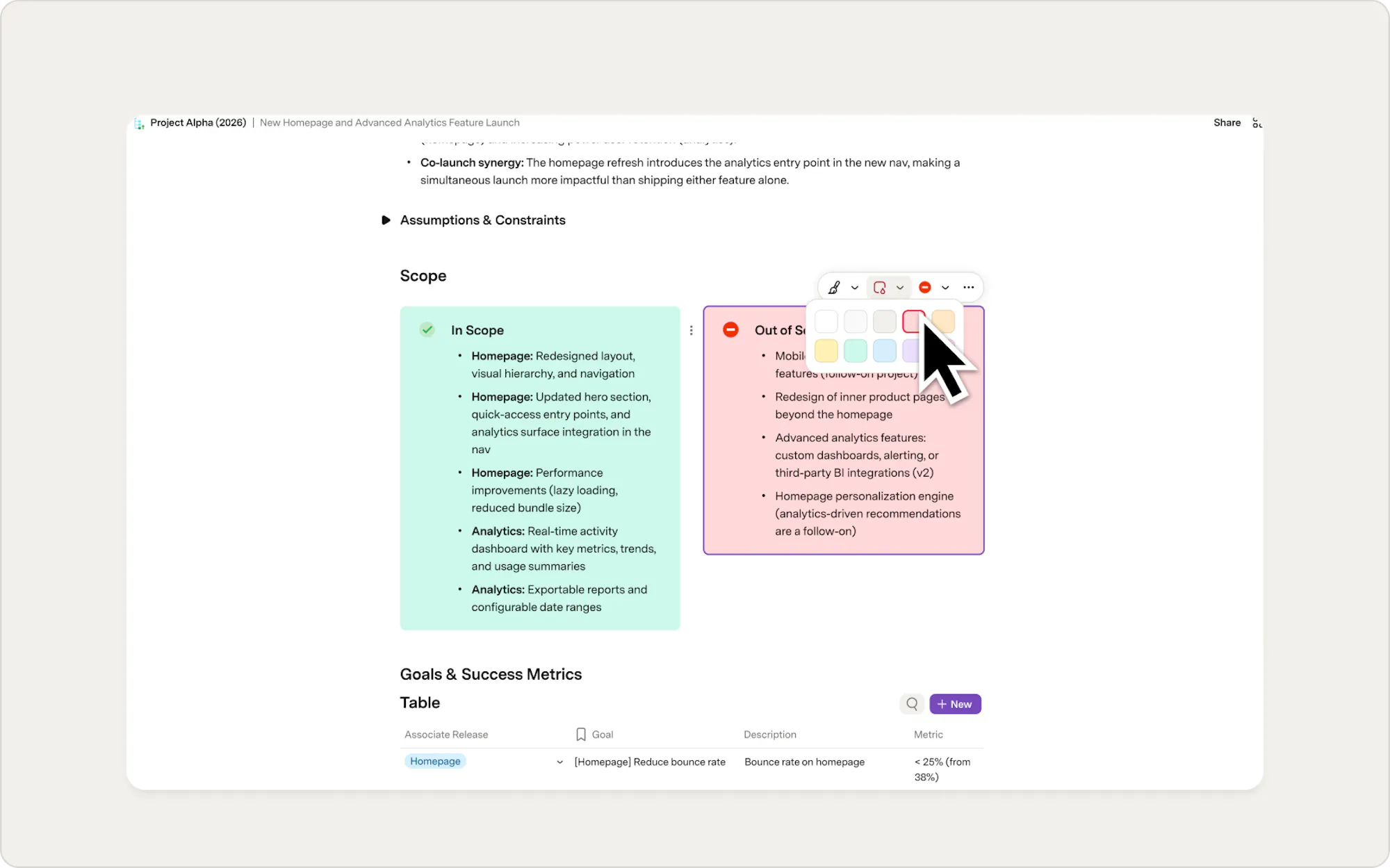
In our experience, the best pages start with a set of detailed instructions. A great way to callout your instructions is to use a callout...pun intended.- At the top of a page in your doc, type "/callout" and select callout.
- Type a header for your callout and press enter.
- Type text explaining what the page is for.
- Change the icon by clicking into the provided icon.
- Change the color by clicking the three-dot menu to the left of the callout.
Visualize data
For some, it's easy to get lost in long datasets. Tables in Superhuman Docs allow you to change the visual layout and make information more palatable. To do this, add a view to your original table:- Start by selecting the plus icon next to your Table header.
- Then, select a layout that makes sense for your data.
2. Visuals to enhance interactivity
Visuals that communicate one-way are great. Visuals that allow you to communicate and collect information are better. These next steps teach you how to create visual elements that will foster collaboration and make your docs interactive.Get collaborators input with reactions
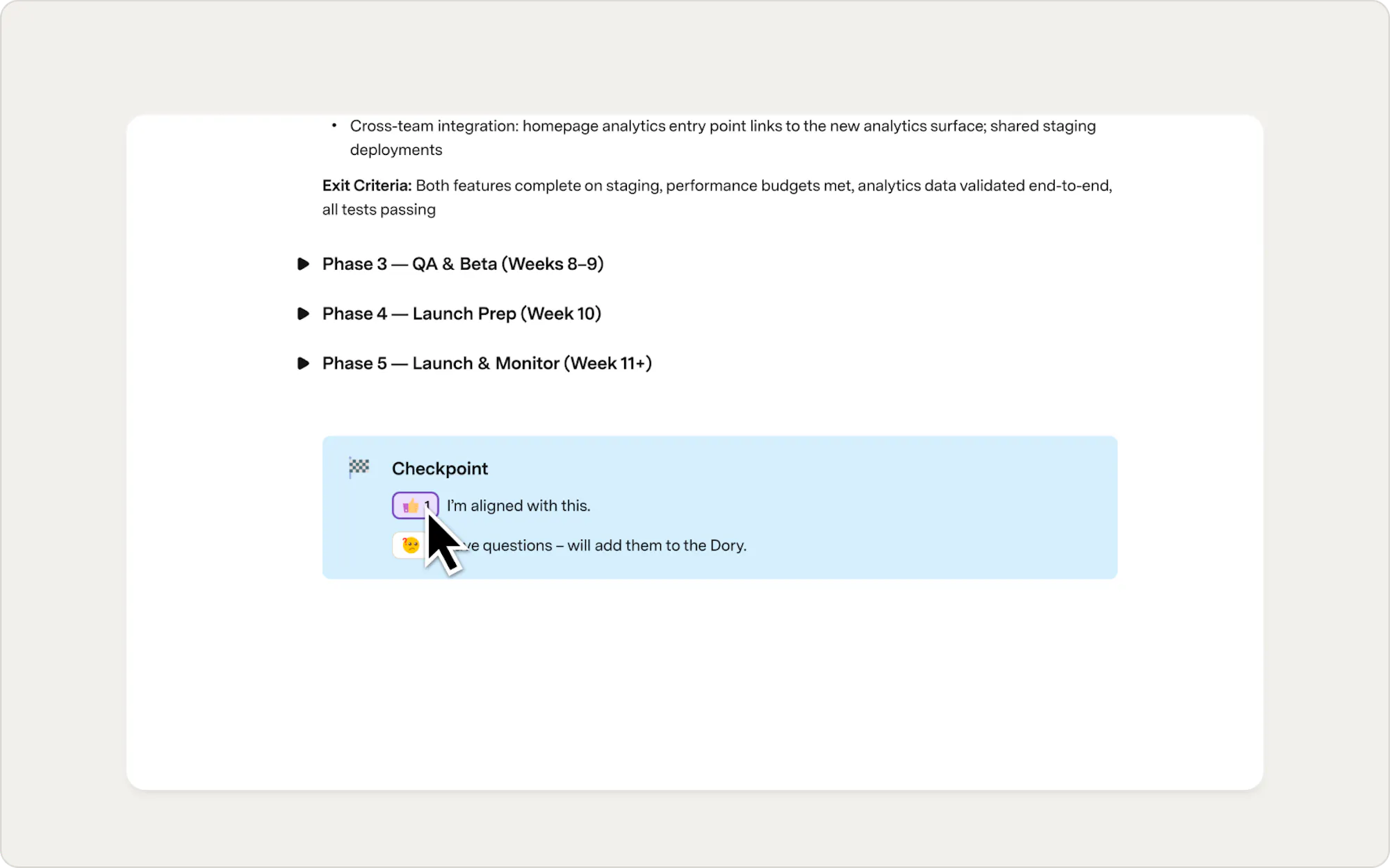
Want to make sure everyone’s up-to-date on the latest writeup? Try one of Superhuman Docs' reactions to take a pulse of who’s finished reading. And because Superhuman Docs tracks the interaction, including who voted and how many votes, you can take action (like send an email to everyone who reacted a certain way) on the reaction directly from Superhuman Docs.- Type "/reaction" in your canvas.
- Select a templated reaction or create your own by typing some instructions on the purpose of the reaction.

Docs tip
You have a plethora of icons for reactions at your disposal, so get creative. Combine them with callouts, add them in line with text, or create reaction columns in tables. The possibilities are almost endless!
3. Visuals to make your doc sparkle
If you’re building alongside this visual guide, you might feel like your doc is still missing something obvious. Where are the images? I’m glad you asked! In Superhuman Docs, you can use images in a variety of ways. This step will show you how to choose a cover image from Unsplash and how to embed an image in a page with a link. Let’s start with the cover.
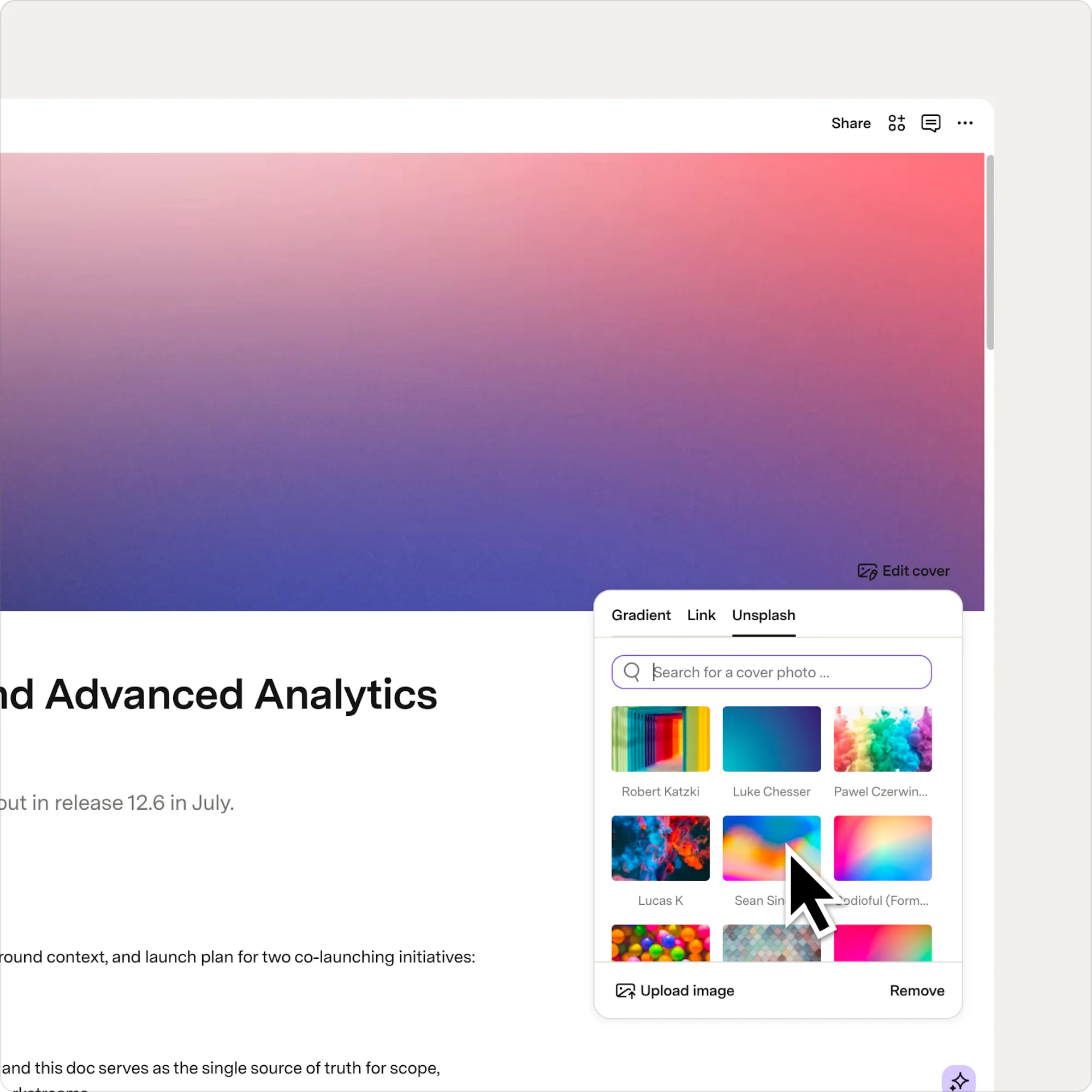
- At the top of your page, above the title, click Add cover.
- Select Choose from Unsplash in the pop up menu on the right.
- Search for your perfect image from a free database of images.
- Click on the image of your choice.
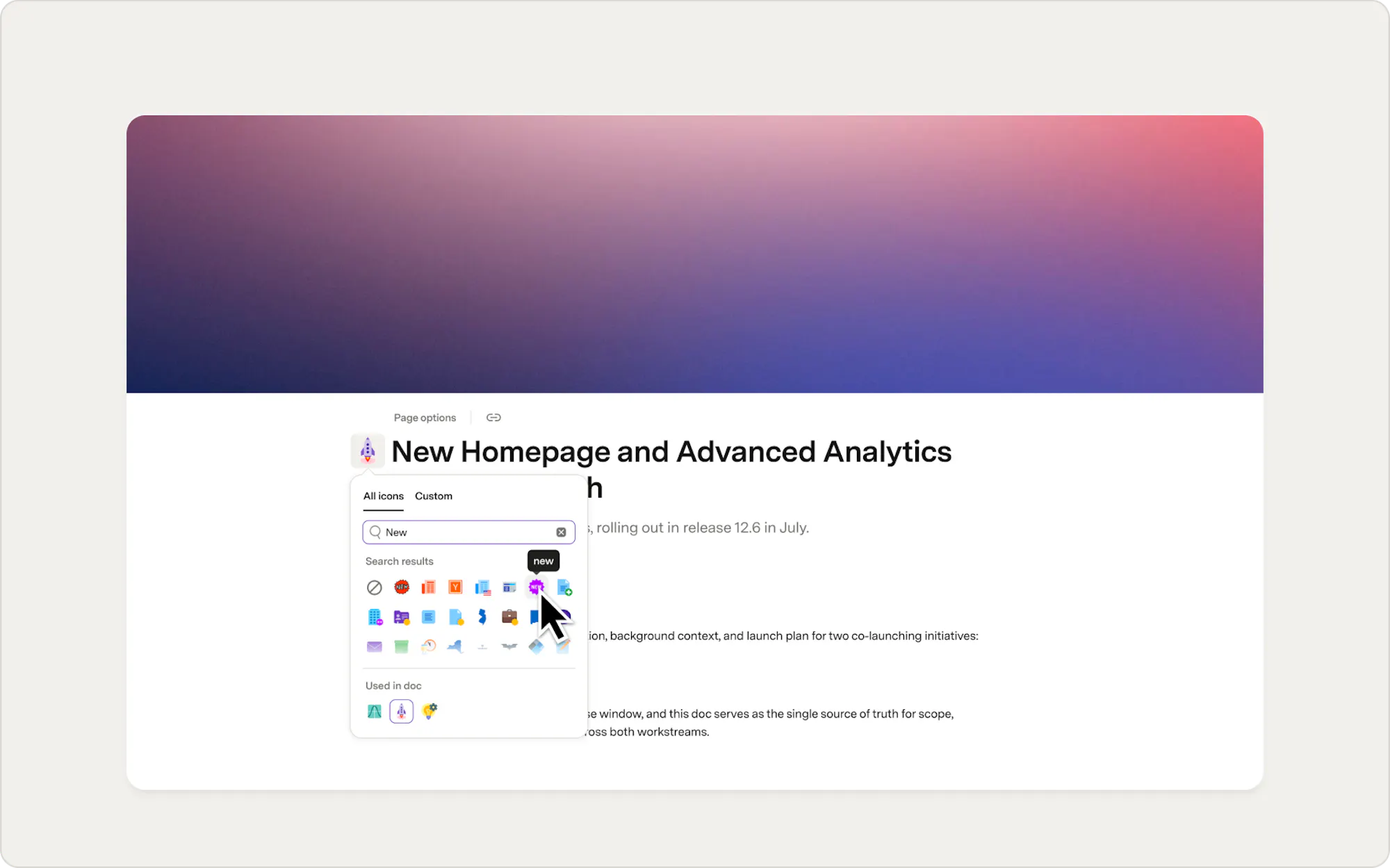
Icons for page titles
Icons add character to your page titles, making it easy to pick out key pages in a wall of text.- Click on the icon next to your page title.
- Search for and select the perfect icon.
4. Bringing visuals together for cohesion
You’ve got the foundation for an aesthetically pleasing doc. Now, let’s bring these elements together to make a cohesive story.Break up your text with columns in a page.
If you have multiple images you want to showcase, you can drag and drop them next to each other to form columns in your page.- Insert a couple more images (/embed).
- Click the three-dot menu next to one and drag it next to another.
- Repeat as needed.
Now what?
Visual formatting is one of the fastest ways to make a doc more useful for your team. Here are a few good next steps:- How to build a team hub in Superhuman Docs — put these formatting skills to work in a real doc structure
- Make a wiki that saves your team time — see how formatting and structure work together in a knowledge base
Was this helpful?
YesNo