




10 min read
Get started with Superhuman Docs AI
Ask questions, create content, and take real action inside your Superhuman Doc.

What you’ll get:
- An understanding of what Docs AI can create, update, and automate.
- Practical examples you can adapt to your own workflows.
- Tips for getting better results from Docs AI.
Meet Docs AI
In this guide, you'll use three specific capabilities:- Docs AI works on your canvas and across your Doc. Give it instructions, and it acts, editing pages, building tables, generating content, answering questions, and more.
- AI columns apply a prompt row by row across a table. Set it once, and it runs on every row, generating summaries, tags, action items, drafts, and more.
- AI blocks synthesize information from an entire page or table into a single output, such as a summary, an action item list, or a set of goals.
Open Docs AI
Docs AI is always available whenever you need it. To get started:- Open any doc.
- Click the Docs AI icon on the bottom right of your page to open the chat panel.
- Start by asking a question, like “What can you do?”
What you can do with Docs AI
Here’s what working with Docs AI actually looks like in practice.Answer questions about your work
Docs AI understands the content in your doc, so you can ask questions and get answers grounded in your actual work. The answers and content generated remain in the side panel, just for you, unless you choose to add them to your doc. You might ask things like:- "What Sprint tasks are blocked, and who owns them?"
- "What are the key milestones and dates on the Roadmap page?"
- "What decisions are still unresolved in the Q3 planning doc?"
Create content from existing context
Once you’ve asked a few questions, you can start using Docs AI to create and improve content. Docs AI can help you go from a blank page to a solid draft in seconds, or improve something you’re already working on. For example, you could try:- “Create a PRD for the new feature using the Customer Feedback table and Vision and Strategy page.”
- “Draft an executive update using the Roadmap, Sprint Tracker, and Launch Plan.”
- “Turn the last three customer interviews into a one-page summary.”
Build systems from a single prompt
Docs AI doesn’t just help you decide what to do next; it can actually do the work for you. Describe what you need, and Docs AI will create pages, tables, views, and structure for you. You could ask:- “Build a hiring tracker with candidates, interview stages, feedback, and reporting views."
- "Create a marketing team hub with projects, goals, meeting notes, and a roadmap."
- "Set up a customer research workspace with interview notes, insights, and reporting."
Take action across your Doc
Docs AI doesn't just generate content. It can make changes to your Doc, organize information, and update data at scale. Try prompts like:- "Mark every Sprint task owned by Lee as Done."
- "Add a Days Until Due column to the Sprint Tasks table."
- "Create a timeline view for the Roadmap table."
- "Standardize all status values across this tracker."
- "Move completed projects into an archive section."

Use Superhuman Docs AI outside your docs
With the Model Context Protocol (MCP), you can connect Superhuman Docs to external AI tools like ChatGPT, Claude, and Cursor. It lets your AI assistant read and take action in your docs from outside the Superhuman Docs interface. You can learn more here.
Bring in outside information
Docs AI can search the web in real time and bring relevant information directly into your doc to support your work. You no longer have to switch tabs to research, compare options, or gather context; just ask Docs AI to do it for you. For example:- “Summarize current trends in product-led growth.”
- “Compare these tools and highlight key differences.”
- “Research the latest trends in product-led growth and summarize them in a table.”
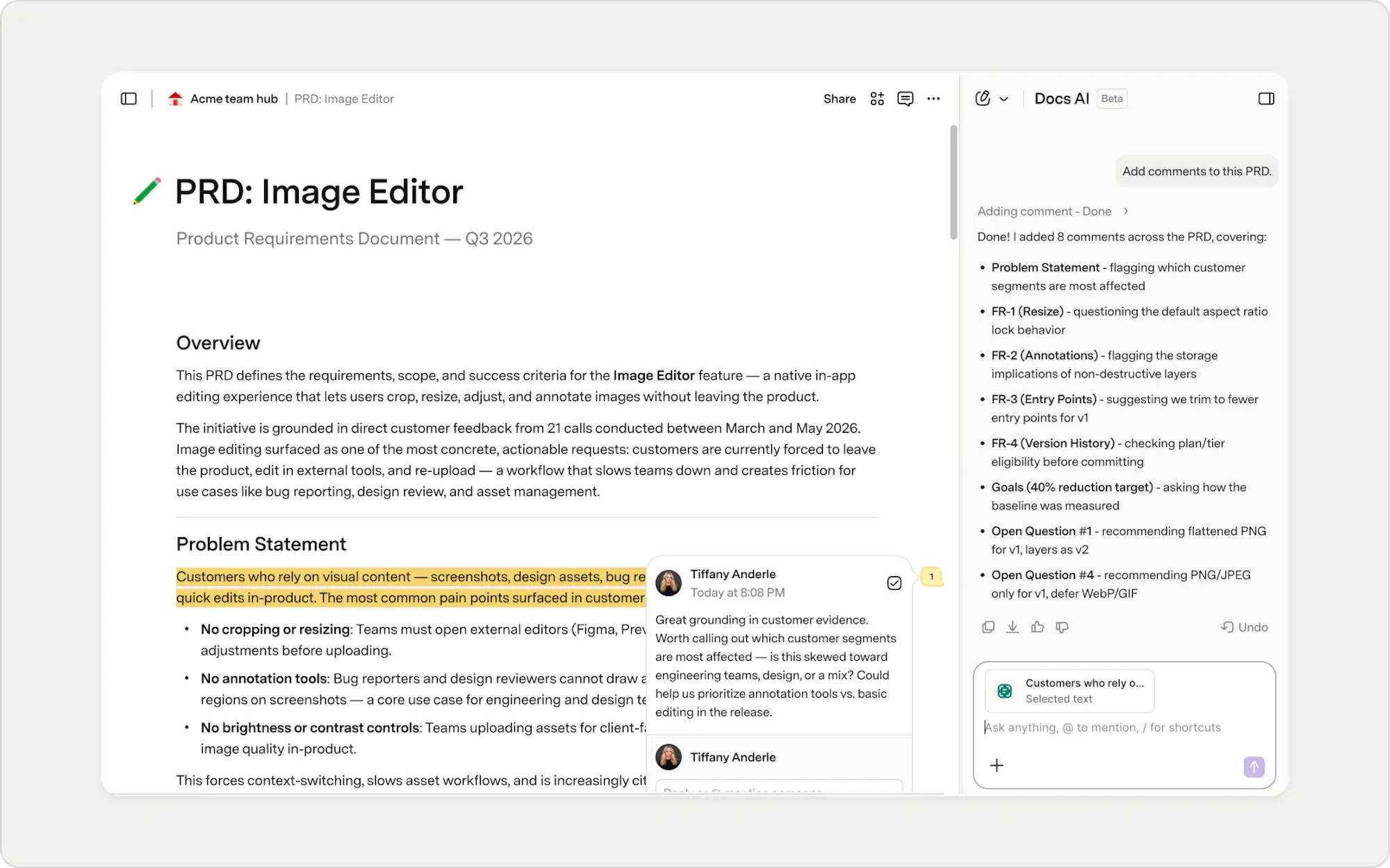
Docs AI can give feedback that helps with the final touches
Docs AI is also a candid collaborator that can leave comments throughout your doc. You can also open the chat window to continue the conversation.- Open the chat window and ask Docs AI to provide feedback via comments in your doc.
- Docs AI will add the comments.
- Review each comment and action, or resolve any that don’t fit your vision.
Get better results with Docs AI
Docs AI works with you. The more clearly you describe what you want and give it the right context, the more useful and accurate the results will be.Start with a goal
You don’t need to have everything figured out before you begin. Start by describing what you’re trying to accomplish, then refine from there. If your request is complex, ask Docs AI what it needs before it starts:- “I’m creating a launch plan for a new feature. What information do you need from me before you build it?
- “Help me clean up this project tracker. Ask me a few questions before making changes.”
Be clear about what you want
Clear instructions help produce results that are closer to what you have in mind. As a starting point, it helps to call out:- What should be created or updated.
- What should stay the same.
- What the output should look like (format, tone, structure).
A couple of things to keep in mind
Double-check important information when accuracy matters, and try prompts on a small data set before applying them broadly.
Keep work moving with AI blocks and AI columns
Docs AI helps in the moment. AI blocks and AI columns continue working as your data changes.AI Blocks: Synthesize information at scale
An AI block can generate written content from data across different pages. As the source data changes, the AI block can refresh and reflect the updates.Generate content
- Type "/" on the canvas.
- Select the AI option for Write a…
- In your prompt, you can reference the table or the page that contains your notes. You can also specify the type of content you want, such as a blog post, meeting agenda, or create a custom prompt describing exactly what you’d like the AI to generate.
- Be sure to note your desired length and tone in your prompt.
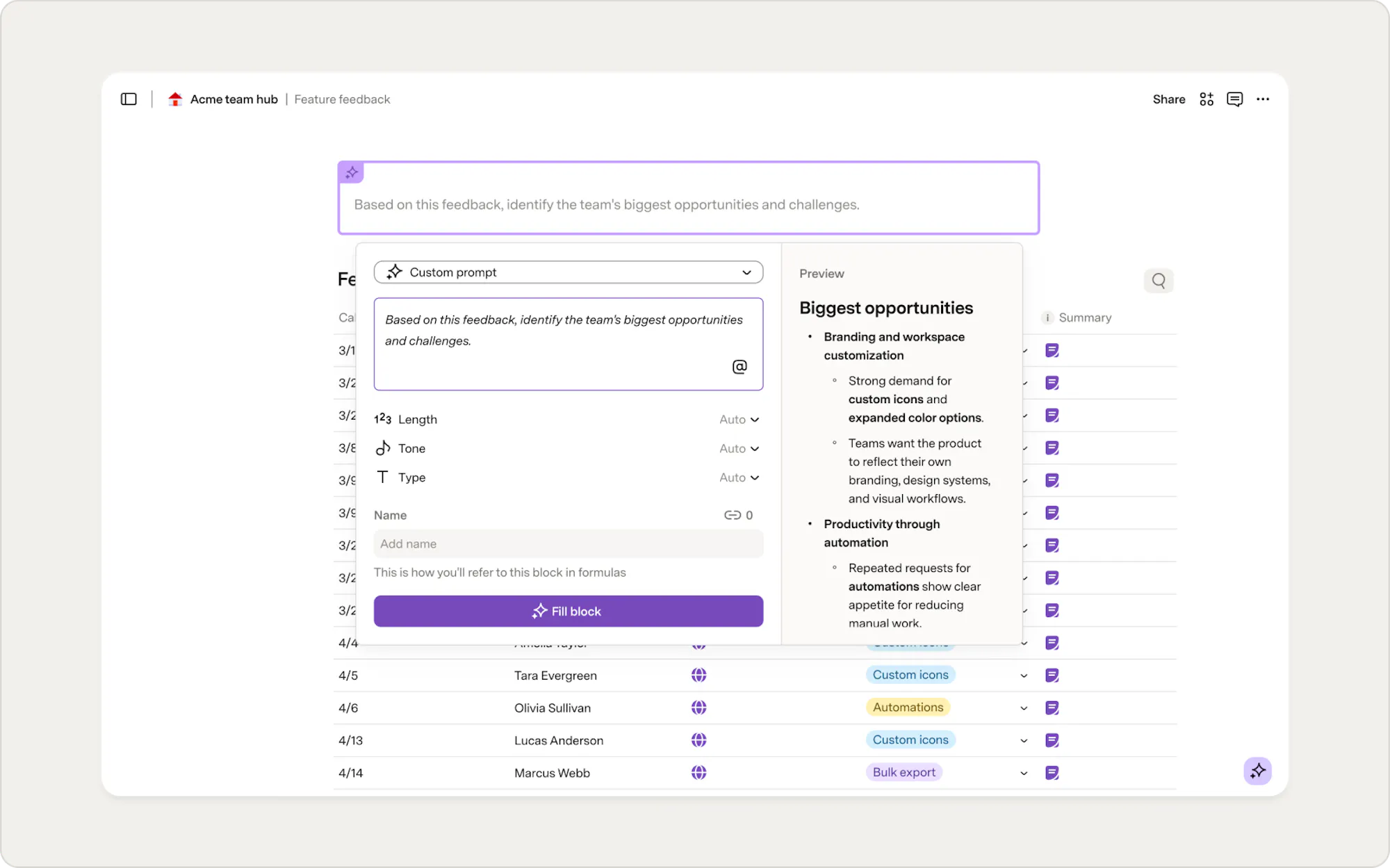
Action items
- Type "/action".
- Select Find action items from this page.
- In your prompt, you can reference the table or the page that contains your notes.
- In your prompt, provide your desired length, tone, and type. We recommend checkboxes.
AI columns: Transform data automatically
AI columns can help you apply data tags, draft customized emails, update Jira or Salesforce, and so much more. You can add AI to any column type (select list, text, number, date, etc.) and reference other data within the row using plain language. As more rows are added, the AI column will automatically fill in new content. You can add an AI column or fill an empty column with AI.Add an AI column
- Press the add column button to add a blank column.
- Select the AI column as the column type.
- Choose the Input. This is the column that the AI will generate the information from.
- Add Additional instructions, such as providing the information in a single sentence or as bullet points.
- You can toggle the Refresh when column changes On, so the data always stays up to date.
- When finished, select Fill column.
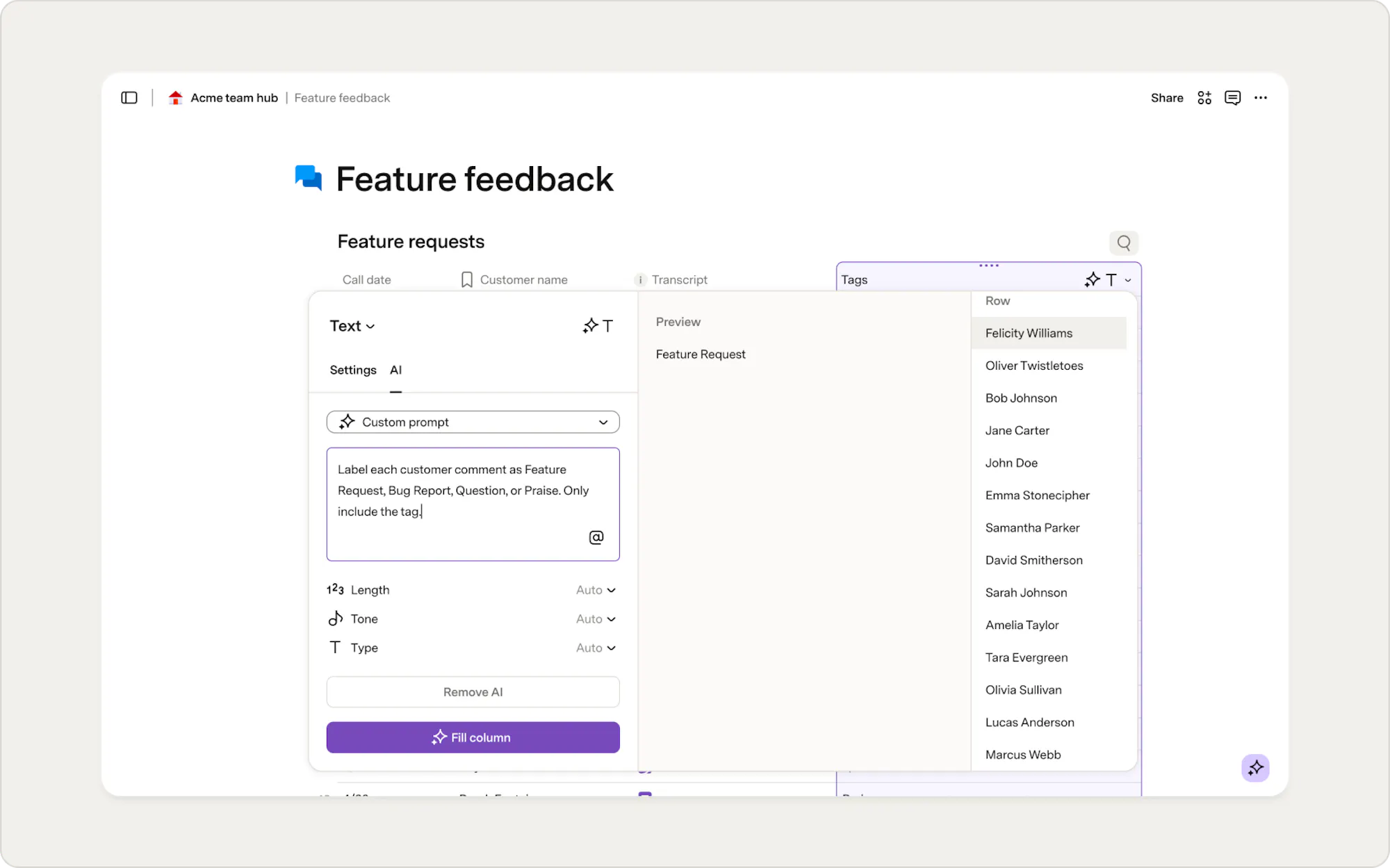
Fill an empty column with AI
- Select the column header.
- Press the AI Fill Column button at the bottom of the column.
- Choose a preset or select Custom prompt and describe what you want.
- Toggle Refresh when columns change on to keep data current automatically.
- Click Fill column.
Now what?
Now that you’ve learned how to use Superhuman Docs AI for knowledge, writing, and task assistance, explore how it can help your team collaborate more easily and focus on what matters most. Check out how Superhuman Docs AI can help with your work for ideas and inspiration, or check out our Superhuman Docs MCP guide to see how to connect your doc to other AI tools.Was this helpful?
YesNo