




10 min read
Switching from Quip
7 transitions to understand as you make the move between tools.

What you have in Quip …
- Folders and files
- @ command
- Standalone spreadsheets
- Disconnected data blocks
- Spreadsheet language
- Live apps
What you’ll have in Superhuman Docs …
- Docs and pages
- / command
- Tables and views
- Connected data across your doc
- Superhuman Docs formula language
- Connectors
1. Folders and files to docs and pages
In Quip, work lives across separate files. In Superhuman Docs, it lives together in one place. In Quip, work is organized into folders and files. Each document or spreadsheet lives on its own, even if it sits next to related content in the same folder. Over time, this can make it harder to see how pieces of work relate to one another, especially as the number of docs grows. In Superhuman Docs, related work lives together inside a single doc that you can organize into pages and subpages. Instead of creating a new file for each document or spreadsheet as you would in Quip, you simply add pages or subpages directly in your doc. It makes it easier to group plans, notes, trackers, and references in one place and navigate them through a built-in page hierarchy.
New here? Start here
Get to know your way around docs with this guide: Navigating a Superhuman Doc.
2. Spreadsheets to tables and grids
In Quip, spreadsheets are separate from your docs. In Superhuman Docs, structured data lives directly inside them. Quip lets you create spreadsheets as standalone files or as building blocks in a document. They’re useful for working with structured data, but they often end up isolated from the rest of your work, with similar information duplicated across multiple spreadsheets.Superhuman Docs takes a different approach.
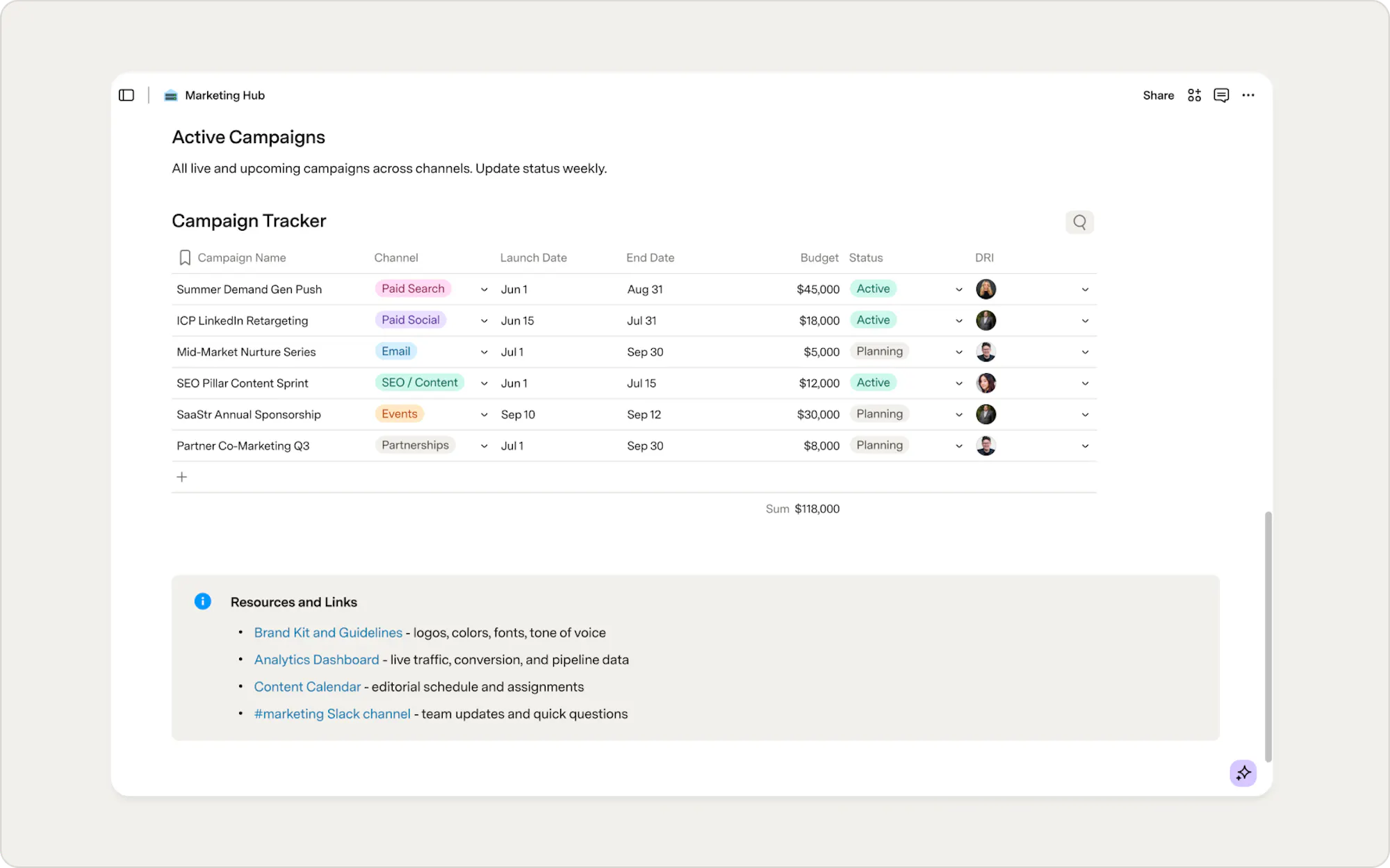
Your guide to tables
To learn more about tables, check out this guide: Getting started with tables in Superhuman Docs.
3. Disconnected blocks to connected views
While Quip includes multiple ways to visualize structured data (for example, tables, calendars, Kanban), each block is disconnected from the others. This means that if you make an update in one place, you’ll need to manually make the change everywhere else, too. In contrast, you can create multiple views of the same data in Superhuman Docs. You can interact with the same data in table, board, calendar, chart, or timeline views, without creating duplicates. When something changes in one view, it updates everywhere that data appears. Even Superhuman Docs’ many data visualization options update in real time, so charts, word clouds, timelines, and other views always reflect the freshest information. The result is less manual maintenance and greater confidence that everyone is viewing the same up-to-date information.4. Editing and formatting get an upgrade
In Quip, editing is mostly linear. In Superhuman Docs, it’s flexible and modular. Superhuman Docs supports both block and line-level editing. You can move blocks of text, tables, and more by dragging the three dots to the left of a paragraph, instead of copy/pasting everything in Quip.Organize and style your content
When it comes to writing on the canvas or in a table, Superhuman Docs supports more than plain text. You can format text as headers, bulleted lists, checklists, callouts, code blocks, quotes, and more. These paragraph styles allow you to organize your content, add emphasis and clarity, and design beautiful docs. To access Superhuman Docs' text formatting menu, highlight any text, and the menu bar will appear above your cursor.5. Spreadsheet formulas to the Superhuman Docs formula language
Quip’s formula language is based on traditional spreadsheet formats like those in Excel and Google Sheets. Superhuman Docs, however, has a powerful formula language that works across your entire doc. Simply typing /formula in your Superhuman Docs allows you to use this formula language to do everything from calculating columns in a table to summarizing data to customizing automations. If you’re spreadsheet or SQL savvy, you’ll find the formula language very familiar. If not, it’s still approachable, and you don’t need many formulas to get meaningful results.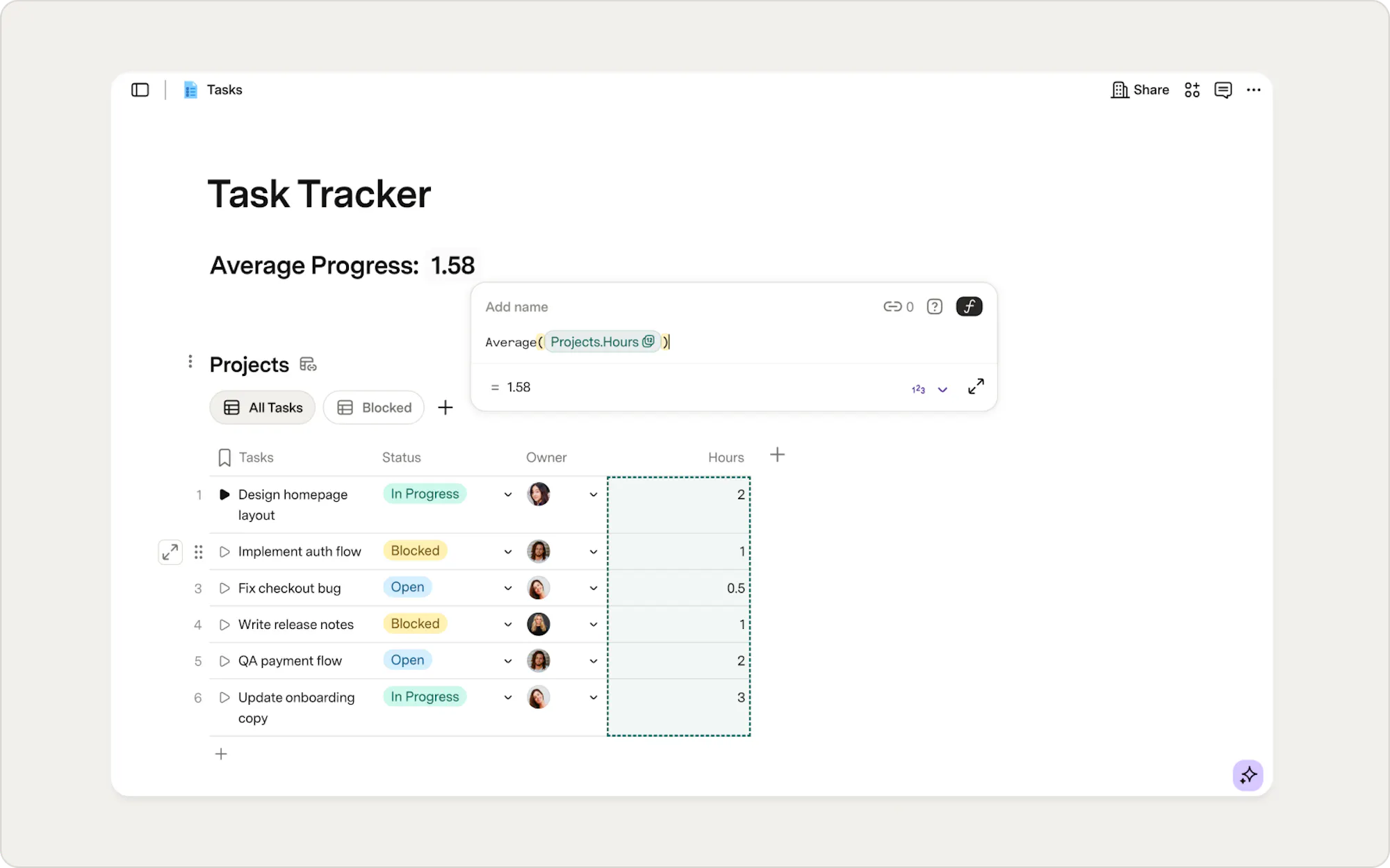
6. Live Apps to Superhuman Packs
Quip offers a small set of native integrations, called Live Apps, available on the Salesforce AppExchange. While useful, these integrations are limited in scope, with only a few delivering deeper capabilities. Superhuman Docs, on the other hand, has a marketplace of extensions and integrations called Packs, including Salesforce, Jira, Slack, and more. Packs bring data from external tools into Superhuman Docs as sync tables, so you can analyze, visualize, and take action on it in one place. Some Packs also include two-way sync, so you can make changes in your doc and have them reflected in the app, and vice versa. To learn more about Packs, check out Using Packs.
Keep context close to work
Beyond data and integrations, Superhuman Docs helps teams keep context in one place. You can embed links, files, and tools like Miro boards or Figma designs directly into your doc. Embeds can live inline or as full pages, depending on your needs. The result is fewer tabs, less context switching, and more work happening in one place.
7. From @ to /
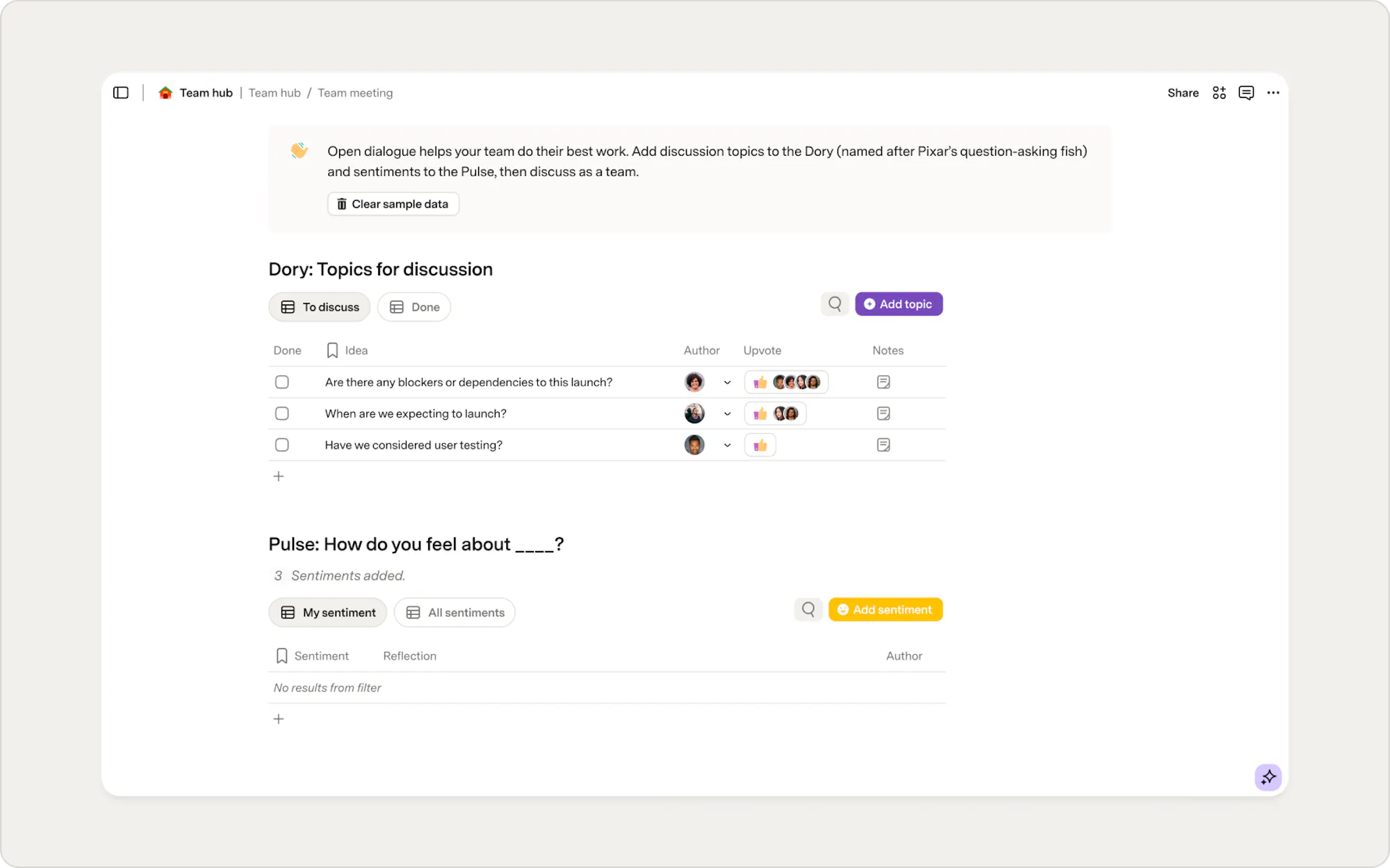
The slash command or "/", in Superhuman Docs is similar to the @ symbol in Quip. It’s the primary shortcut for adding many building blocks to your doc, like tables, buttons, templates, and other interactive elements. The difference is what you’re adding. Instead of inserting mostly static elements, the slash command helps you assemble functional pieces as you work. These elements can store data, trigger actions, and shape how your doc behaves. Over time, it becomes the fastest way to build and evolve a doc without breaking your flow.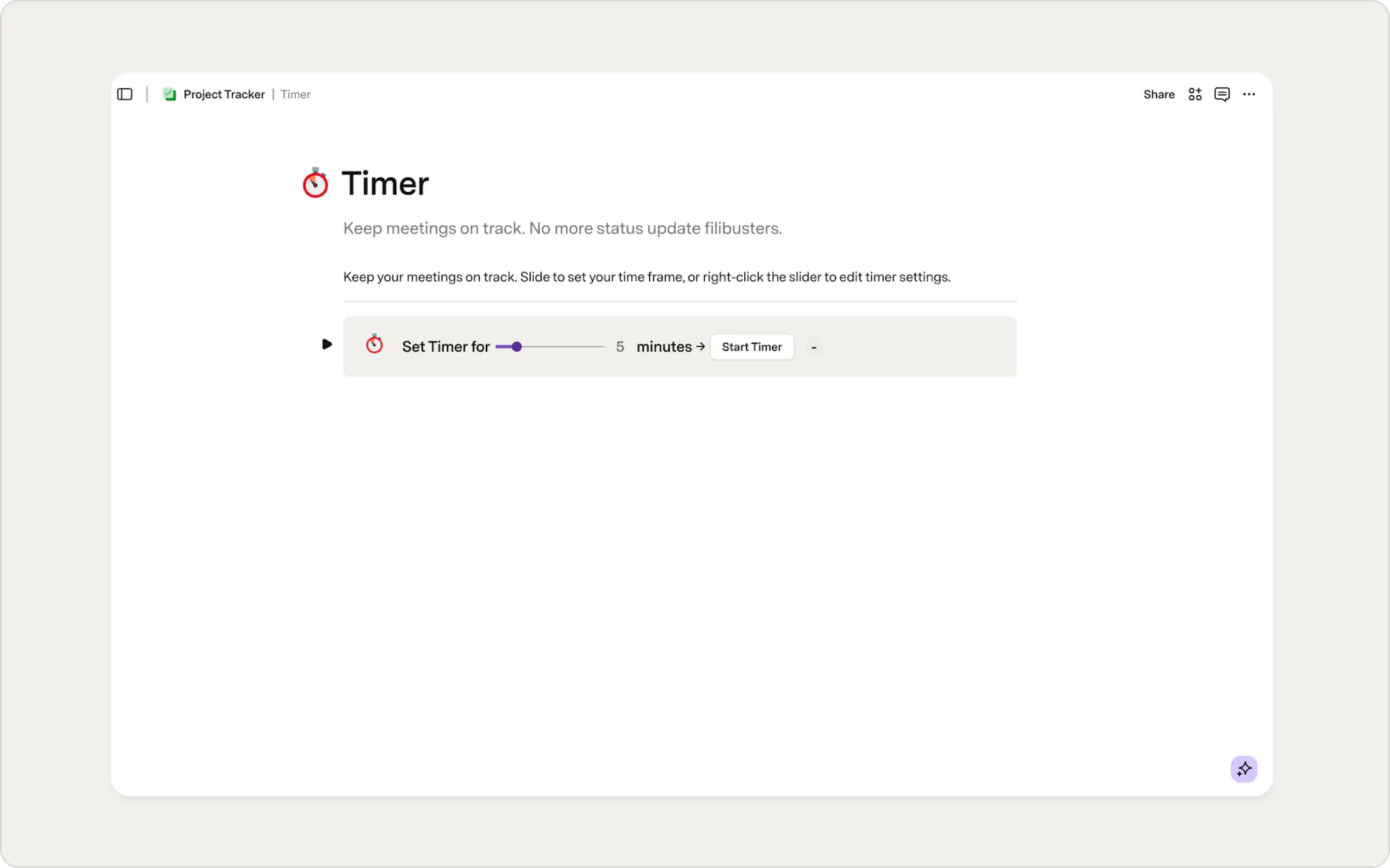
Now what?
These seven shifts cover the biggest surface-level differences between Quip and Superhuman Docs. But they only tell part of the story. Superhuman Docs is built around AI that works directly inside your Doc — drafting content, building tables, taking action on your data — and that's not something Quip has an equivalent for. If you’re planning a full migration or want detailed guidance on what imports, what needs follow-up, and how to avoid surprises, the Migrating from Quip to Superhuman Docs guide will take you through the process step-by-step.Enterprise teams
If you’re an enterprise customer, talk to your account rep about how we can support your migration.
Was this helpful?
YesNo